
White ink printing has become one of the most powerful capabilities in modern wide-format production. From vibrant graphics on dark surfaces to double-sided window decals and specialty applications like DTF and backlit signage, white ink creates opportunities for creative, high-margin print products.
But achieving consistent results with white ink isn’t always straightforward.
Successful white ink printing requires careful attention to file preparation, color modes, print workflows, and RIP configuration. When these elements are dialed in correctly, print service providers can produce striking visuals that stand out in ways standard CMYK printing simply cannot.
In this guide, we will explore practical tips, workflows, and best practices for printing with white ink to optimize production. Additionally, we will discuss how the right software tools can significantly simplify the process.
Why White Ink Printing Is So Valuable in Wide Format
White ink plays a unique role in digital printing because traditional CMYK inks rely on a white substrate to create brightness and contrast. When printing on transparent, metallic, or dark materials, color alone often looks muted or washed out.
White ink solves this problem by acting as a foundation layer that allows colors to remain vibrant regardless of the material.
Print providers commonly use white ink to:
- Print graphics on dark or colored substrates.
- Create window decals visible from both sides.
- Produce backlit signage with improved color density.
- Print on clear media, acrylic, or glass.
- Add visual impact to packaging prototypes and specialty graphics.
For many shops, white ink isn’t just a technical capability; it’s a profit driver that enables premium print applications that customers are willing to pay more for.
The Four Core White Ink Printing Methods
Most white ink printing workflows fall into four primary categories. Understanding when to use each method is essential for achieving the desired visual result.
Spot White Printing
Spot white printing is the simplest use of white ink.
In this workflow, white is treated as a spot color channel and printed only in specific areas of the design. This technique is commonly used to:
- Print white text or graphics on dark materials.
- Add highlights or accents.
- Create decorative white elements within a design.
To use spot white successfully, the white areas must be defined as spot colors in the design file so the RIP can map them to the printer’s white ink channel.

Underbase Printing (Underflood)
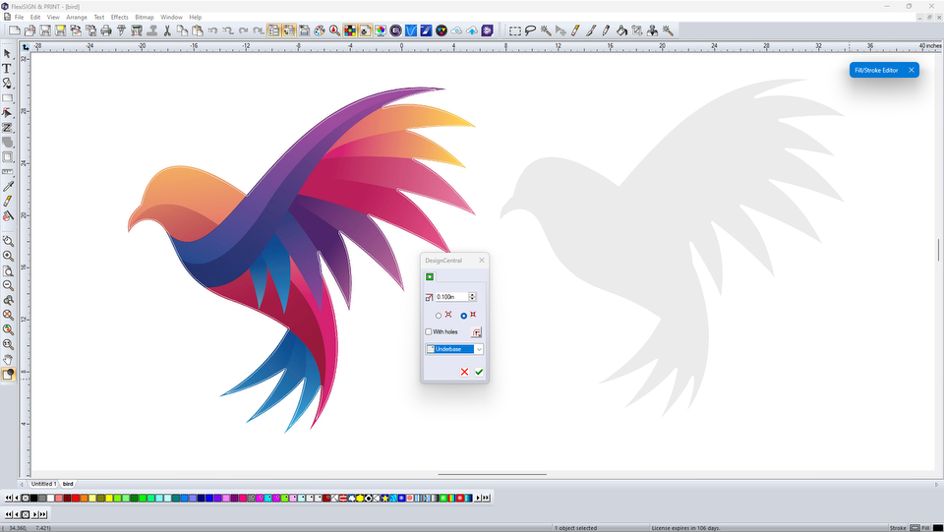
Underbase printing places a solid or variable white layer beneath the color image.
This method acts like a primer, ensuring that colors printed on dark materials appear bright and accurate rather than muted by the substrate.
Typical applications include:
- Printing graphics on dark vinyl or colored substrates.
- Packaging prototypes.
- Signage printed on non-white materials.
Advanced workflows may also use a variable underbase, where lighter areas receive more white ink while darker areas receive less, helping optimize ink usage and color accuracy.

Overflood Printing
Overflood printing is typically used with transparent media. In this workflow:
- The color image is printed first (often mirrored).
- A layer of white ink is printed on top of the graphic.
When viewed from the front of the clear material, the design appears vibrant while the white layer provides opacity and diffusion behind the image.
Common applications include:
- Window graphics.
- Clear decals.
- Menu boards and display panels.
Sandwich (Dual-View) Printing
Sandwich printing, also known as 3-layer or 5-layer printing, places white ink between layers of color.
A typical 3-layer structure looks like this:
Color ? White ? Color
This technique allows graphics to be viewed correctly from both sides of clear media, making it ideal for:
- Double-sided window decals.
- Glass door graphics.
- Day/night signage.
More advanced 5-layer prints may add a black blocking layer between two white layers to prevent light from passing through the design.
Preparing Files for Successful White Ink Printing
One of the most common sources of white ink issues is file preparation. Before sending a job to print, make sure the design file is optimized for white ink workflows.
Important considerations include:
Use the Correct File Types
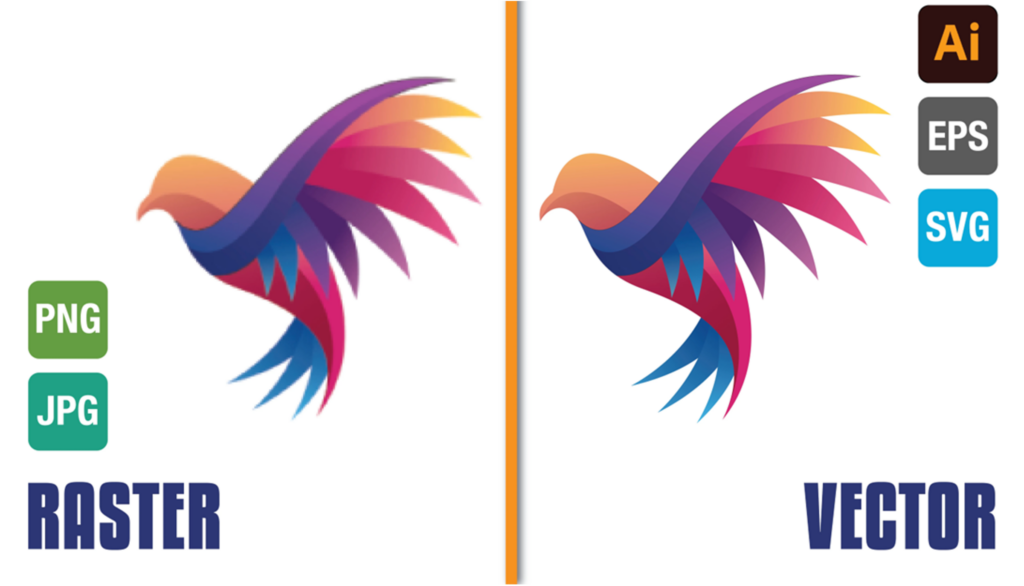
Vector formats like AI, EPS, and SVG provide crisp edges and are ideal for spot white elements and text.
Raster formats like PNG can also work well, especially when transparency channels are used to define where white ink should appear.
Pay Attention to Resolution
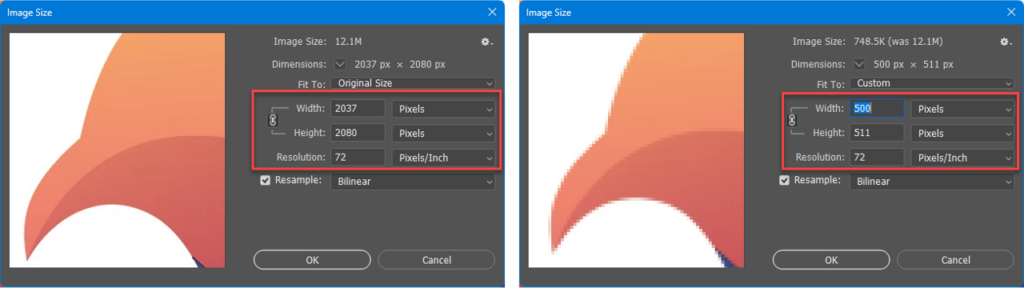
If using raster graphics, ensure the image resolution supports the intended print size. Scaling low-resolution images can produce jagged edges or inconsistent white coverage.
If necessary, consider:
- Resampling images.
- Vectorizing artwork.
- Using higher-resolution source files.
Manage Transparency Carefully
Transparent backgrounds often determine where white ink is placed. Many workflows rely on alpha channel transparency to automatically generate white under bases, especially in DTF printing or decal production.
Color Modes and ICC Profiles Matter
Another critical step in white ink printing is choosing the correct color mode and ICC profile.
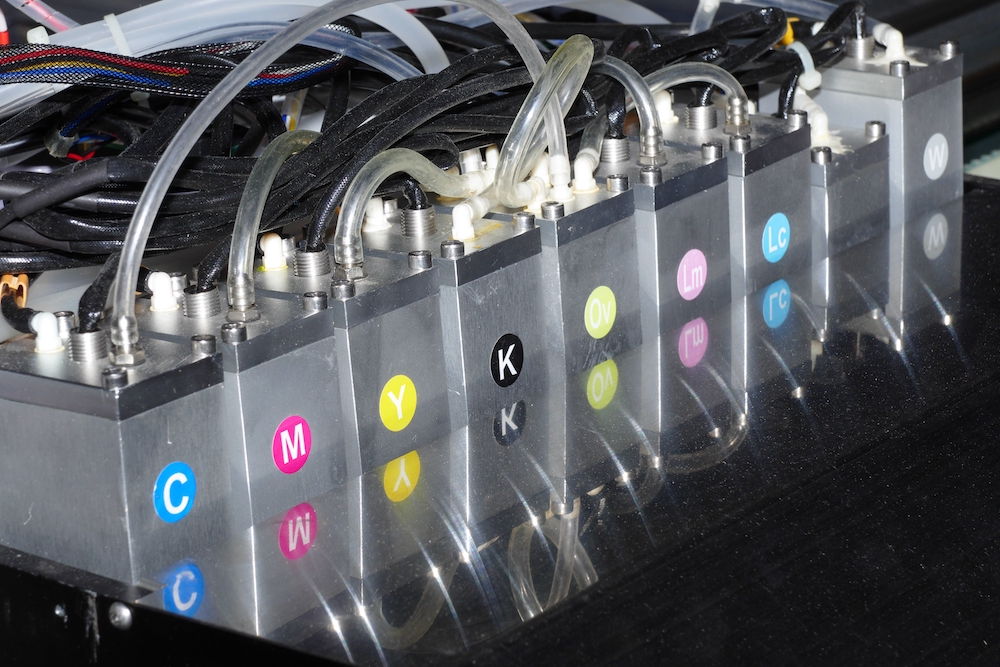
Most printers require a color mode that includes a white channel, such as:
- CMYK+W
- KCMYWW
Without the proper color mode, the printer may simply ignore white objects in the file.
Each printer manufacturer uses slightly different naming conventions for ICC profiles, so it’s important to understand how your specific device manages white ink channels.
How RIP Software Simplifies White Ink Printing
While printers control the physical ink channels, RIP software plays a central role in managing how white ink is generated, mapped, and printed.
A powerful RIP allows you to:
- Map spot colors to the white ink channel.
- Create underbase layers.
- Adjust white ink density.
- Manage transparency workflows.
- Preview output channels before printing.
- Save presets for repeat jobs.
Tools like Flexi Complete provide advanced options for white ink production directly within the design and RIP workflow.
Flexi allows print professionals to:
- Create solid or variable underbases.
- Control white placement using Design Central.
- Manage transparency options within Production Manager.
- Preview how white ink will print using output channel previews.
- Save presets for repeatable workflows.
These capabilities help reduce setup time and prevent costly printing errors.
You can explore the full Flexi product line on the Flexi product family page.
Troubleshooting Common White Ink Printing Issues
Even experienced print operators occasionally run into white ink challenges. Here are a few common issues and how to resolve them.
White Ink Isn’t Printing
Often this happens when the white areas are not defined as spot colors. Standard RGB white (255, 255, 255) will not trigger the white ink channel.
Ensure the design uses a spot white color mapped to the white ink channel.
Inconsistent White Ink Coverage
If white ink density looks uneven:
- Perform a nozzle check.
- Clean the print head if needed.
- Ensure white ink cartridges are properly mixed.
White ink contains heavier pigment particles that may settle if not periodically agitated.
White Ink Appears as Another Color
If white prints as cyan or another color, the issue is usually color mapping in the RIP.
Verify that the spot color is properly mapped to the printer’s white ink channel.
White Ink Options Aren’t Available
Check that the selected ICC profile includes a white ink channel. Without the correct color mode, white printing options may not appear in the RIP.
Optimizing Your White Ink Workflow
For print shops running regular white ink jobs, the most efficient approach is to create repeatable presets and workflows.
Best practices include:
- Saving RIP presets for common white ink applications.
- Using standardized spot white color definitions.
- Building templates for common decal or window graphic layouts.
- Previewing output channels before sending jobs to print.
By standardizing these processes, shops can dramatically reduce setup time and improve print consistency.
Expand Your White Ink Capabilities with the Right Tools
White ink printing offers tremendous creative and commercial opportunities, but only when the workflow is properly managed.
With the right combination of file preparation, RIP configuration, and printer settings, print providers can unlock new product categories and produce eye-catching graphics on virtually any material.
Software like Flexi Complete gives wide-format professionals the tools needed to design, prepare, and print complex white ink jobs efficiently.
If you’d like to explore these capabilities firsthand, you can start a 7-day free trial of Flexi and test white ink workflows in your own production environment.
You can also deepen your skills with advanced training available through the Adendo training platform, which offers courses specifically focused on wide-format printing and Flexi workflows.



 EN
EN